
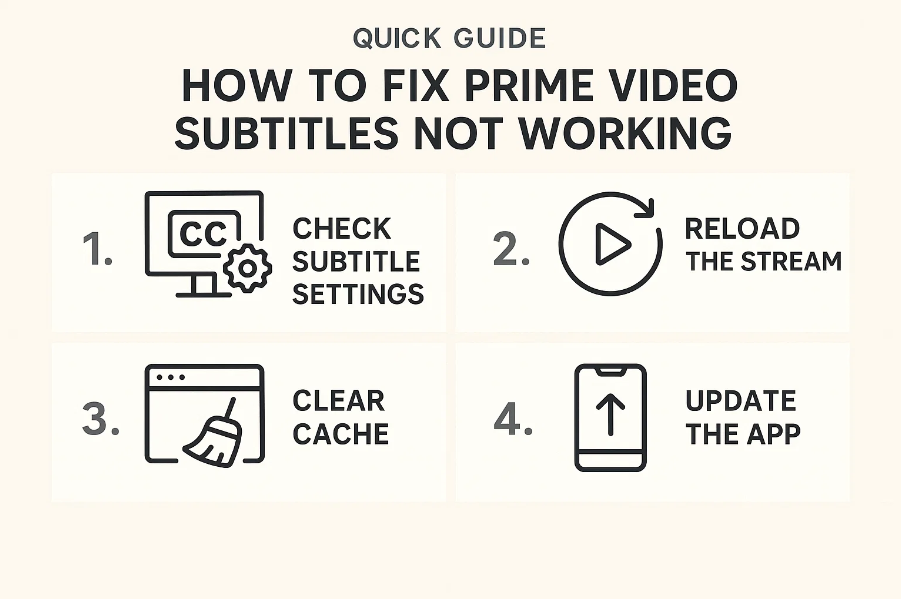
Quick Guide: How to Fix Prime Video Subtitles Not Working
Few things are more frustrating than settling down to watch your favorite show on Amazon Prime Video — only to discover that the subtitles are missing or out of sync. Whether you rely on captions for clarity, language learning, or accessibility, subtitle issues can seriously interrupt your viewing experience.
If you’ve ever asked yourself, “Why are subtitles not working on Amazon Prime?” or “How do I fix Prime Video subtitles not working?”, you’re not alone. Many users encounter these problems across different devices and platforms. Fortunately, there are several easy fixes to get your subtitles back on track.
This guide will explain the most common causes and walk you through practical solutions. Plus, we’ll share a bonus tip to ensure you can always watch your Prime Video content with subtitles — even offline.
Common Reasons Why Prime Video Subtitles Don’t Work
Before jumping into fixes, it’s helpful to understand why subtitles stop working on Amazon Prime Video in the first place. Several factors — from minor software glitches to internet instability — can interfere with how subtitles load and display.
1. Temporary Glitches or Bugs
Sometimes, subtitle issues happen due to temporary bugs or cache problems. The Prime Video app or your browser may store old subtitle data that conflicts with new playback sessions. A quick restart or clearing your cache often resolves these random hiccups.
2. Subtitle Settings Misconfiguration
If your subtitles not working on Amazon Prime, check your playback settings first. You might have accidentally turned off subtitles, selected the wrong language, or changed accessibility preferences without realizing it. These settings can differ between devices, so double-check on each platform you use.
3. Device Compatibility Issues
Some older smart TVs and streaming devices may struggle to display certain subtitle formats used by Amazon Prime Video. Firmware incompatibilities or limited subtitle support can cause Prime Video subtitles not working properly — or appearing garbled and unreadable.
4. Internet Connection Problems
Weak or unstable internet connections can also interrupt subtitle delivery. Subtitles are downloaded as separate files alongside video streams. If your network drops mid-playback, subtitles may freeze, disappear, or show as Prime Video subtitles out of sync.
5. Regional Availability
Due to licensing and regional restrictions, not every show or movie on Prime Video includes subtitles in every language or region. If you’re traveling or using a different country’s catalog, you might find that subtitles are missing altogether.
6. App or System Outdated
Running an outdated version of the Prime Video app — or an older operating system — can lead to performance and compatibility problems. Updates often include fixes for subtitle synchronization, so keeping your app current is essential.
How to Fix Prime Video Subtitles Not Working
Now that you know the causes, let’s go through the practical steps to resolve subtitle issues. Try these solutions in order — from simplest to more advanced — until the problem disappears.
Fix 1: Check Subtitle Settings
The first and most obvious fix is to verify your subtitle configuration.
Here’s how:
Start playing a video on Prime Video.
On the playback screen, look for the “CC” (Closed Captions) or speech bubble icon.
Select your preferred subtitle language from the list.
If subtitles are already enabled, toggle them off and back on.
You can also adjust subtitle appearance by going to:
Settings → Accessibility → Subtitles and Captioning on your device.
Fix 2: Restart the App or Browser
If your subtitles are still missing, close and relaunch the Prime Video app. On a web browser, refresh the page or clear your browser cache and cookies.
Restarting your device entirely can also clear temporary bugs that may cause Prime Video subtitles not working properly.
Fix 3: Update Prime Video App and Device
Outdated software is a frequent culprit. Check for updates in your app store or device settings:
On Smart TVs or Streaming Devices: Go to the App Store or App Manager and update Prime Video.
On Mobile Devices: Visit the App Store (iOS) or Google Play Store (Android) and tap Update.
On Computers: Ensure your browser and operating system are updated to the latest versions.
These updates often resolve Prime Video subtitles out of sync issues by improving subtitle rendering performance.
Fix 4: Check Internet Connection
Subtitles require a stable internet connection to load correctly. Try the following steps:
Run a speed test to check your connection.
Restart your router or switch to a stronger Wi-Fi network.
Pause your video for a few seconds to allow subtitles to sync.
If your connection is unstable, subtitles may appear late or disappear mid-playback — a common reason why subtitles not working on Amazon Prime.
Fix 5: Disable VPN or Proxy
If you’re using a VPN or proxy, Prime Video might misidentify your location. This can prevent certain subtitle tracks from appearing, especially if they aren’t licensed for your detected region.
To fix this:
Turn off your VPN or proxy.
Restart the app or browser.
Reopen your video and re-enable subtitles.
Once the VPN is disabled, subtitles should display correctly for your registered region.
Fix 6: Try Another Device or Browser
Sometimes the problem is specific to the device or browser you’re using. To test this:
Try watching the same video on a different device — such as a smartphone, tablet, or smart TV.
Alternatively, switch browsers (e.g., from Safari to Chrome or Firefox).
If subtitles work elsewhere, it confirms a local issue on your original device. You can then reset its app or settings to fix the problem permanently.
Fix 7: Reinstall Prime Video App
If none of the above solutions work, perform a clean reinstall of the Prime Video app.
Uninstall Prime Video completely.
Restart your device.
Reinstall the latest version from the official app store.
This removes corrupted cache files or outdated configurations that might be preventing subtitles from loading. After reinstalling, log back in and test playback again.
Still Not Working? Try a Better Solution — Watch Offline with Subtitles
Even after troubleshooting, some users still experience Prime Video subtitles not working or subtitles appearing out of sync. This often happens because of unstable internet connections, streaming interruptions, or inconsistent subtitle servers on Prime Video’s end.
The most effective workaround is to download your Prime Video content with subtitles included, allowing you to watch offline — without buffering, lag, or missing captions.
That’s where the CleverGet Amazon Downloader comes in. This tool is a powerful and user-friendly way to download Amazon Prime videos directly to your computer while keeping the original subtitles and audio tracks intact.
Why Use CleverGet Amazon Downloader:
Download movies and TV shows from Amazon Prime in HD quality (up to 1080p).
Save subtitles and multiple audio tracks for offline playback.
Watch offline on any device — no need for constant Wi-Fi.
Avoid subtitle sync errors or missing captions caused by streaming glitches.
Steps:
Install CleverGet Amazon Downloader on your Mac or Windows PC.
Log in to your Amazon Prime Video account within the app.
Find your desired movie or episode.
Choose the video quality, audio track, and subtitle language.
Click Download to save it for offline viewing.
With CleverGet, you can easily download movies from Amazon Prime Video and enjoy them anytime — even when Prime’s streaming service has technical hiccups.
Conclusion
When Prime Video subtitles not working, it can stem from temporary bugs, misconfigured settings, or regional restrictions. Start by checking your subtitle options, restarting the app, and ensuring both your device and internet connection are up to date.
But if problems persist — or if you’re tired of interruptions and out-of-sync captions — consider using CleverGet Amazon Downloader. It lets you save your favorite Prime Video content offline with subtitles intact, so you can enjoy smooth playback anytime, anywhere.
No more worrying about “Why are subtitles not working on Amazon Prime?” — with the right tools and a little preparation, you can guarantee a seamless, subtitle-perfect viewing experience every time.